Documentation Index
Fetch the complete documentation index at: https://smartac-mintlify-bdd272a9.mintlify.app/llms.txt
Use this file to discover all available pages before exploring further.
Prerequisites
- A Mintlify project connected to a GitHub or GitLab repository
- For GitHub: the Mintlify GitHub App installed on every repository you plan to use in the workflow
- For GitLab: a connected GitLab account (see GitLab setup below)
Enable a workflow
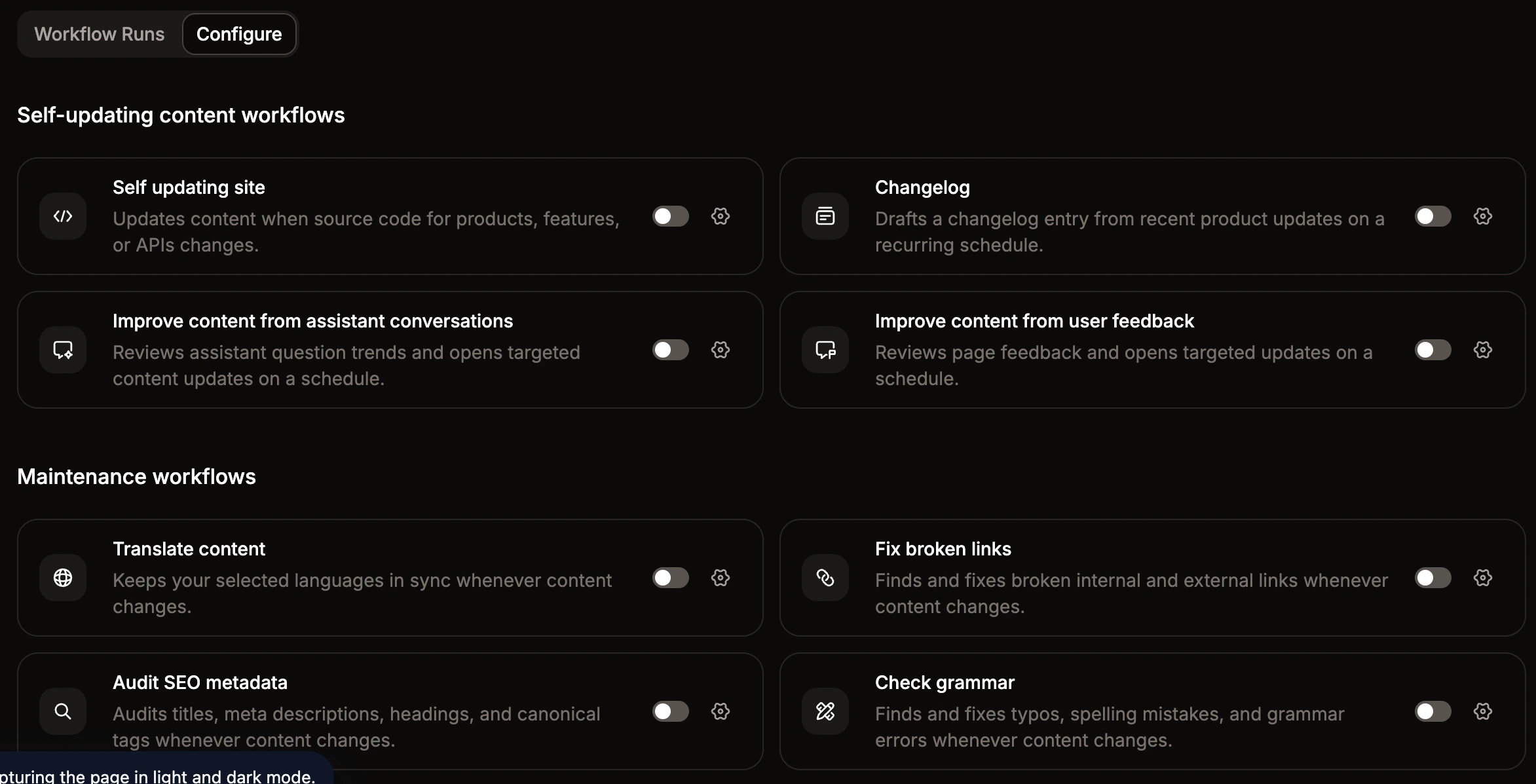
- Open the Workflows page in your dashboard.
-
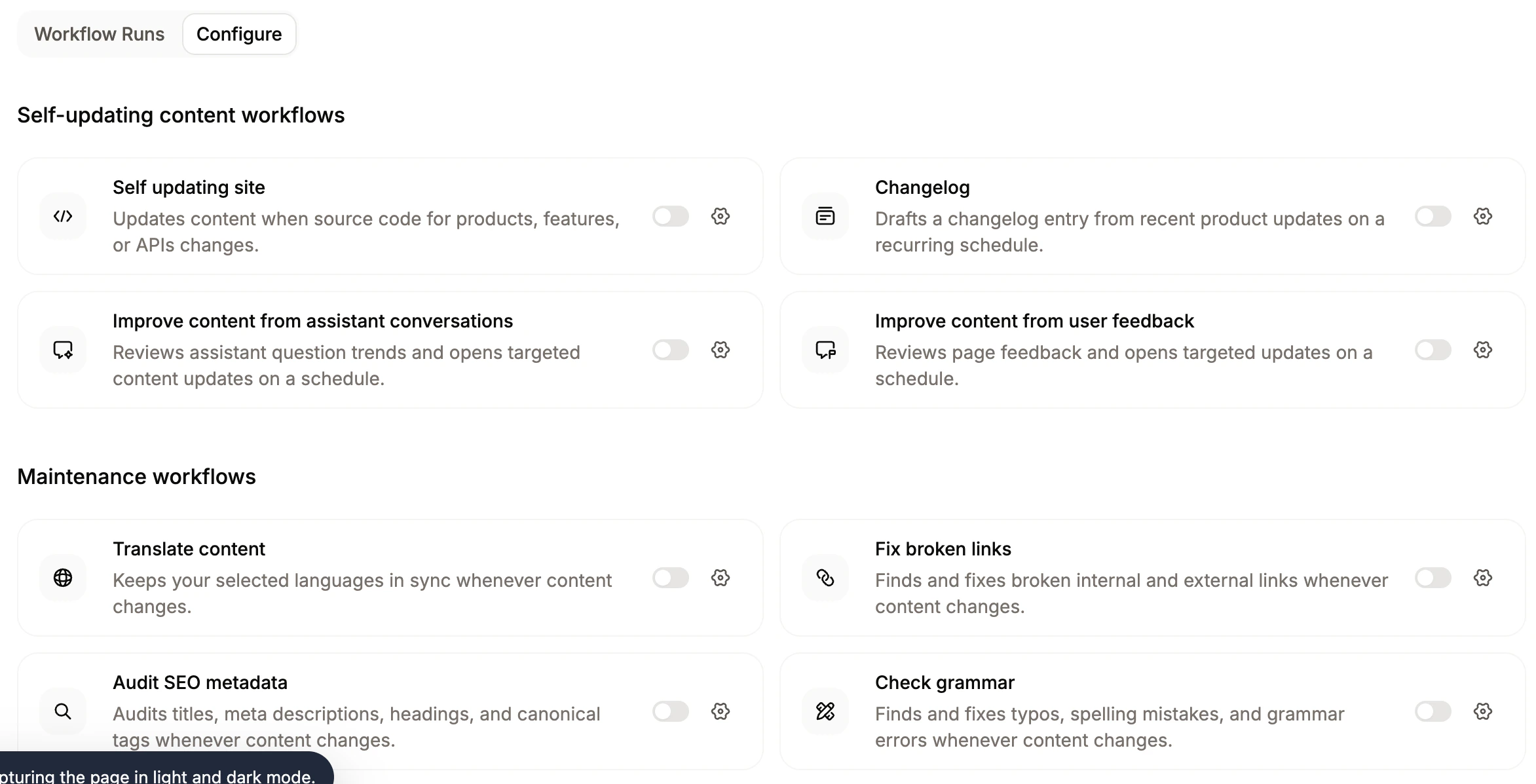
Click the toggle beside a workflow to enable it.
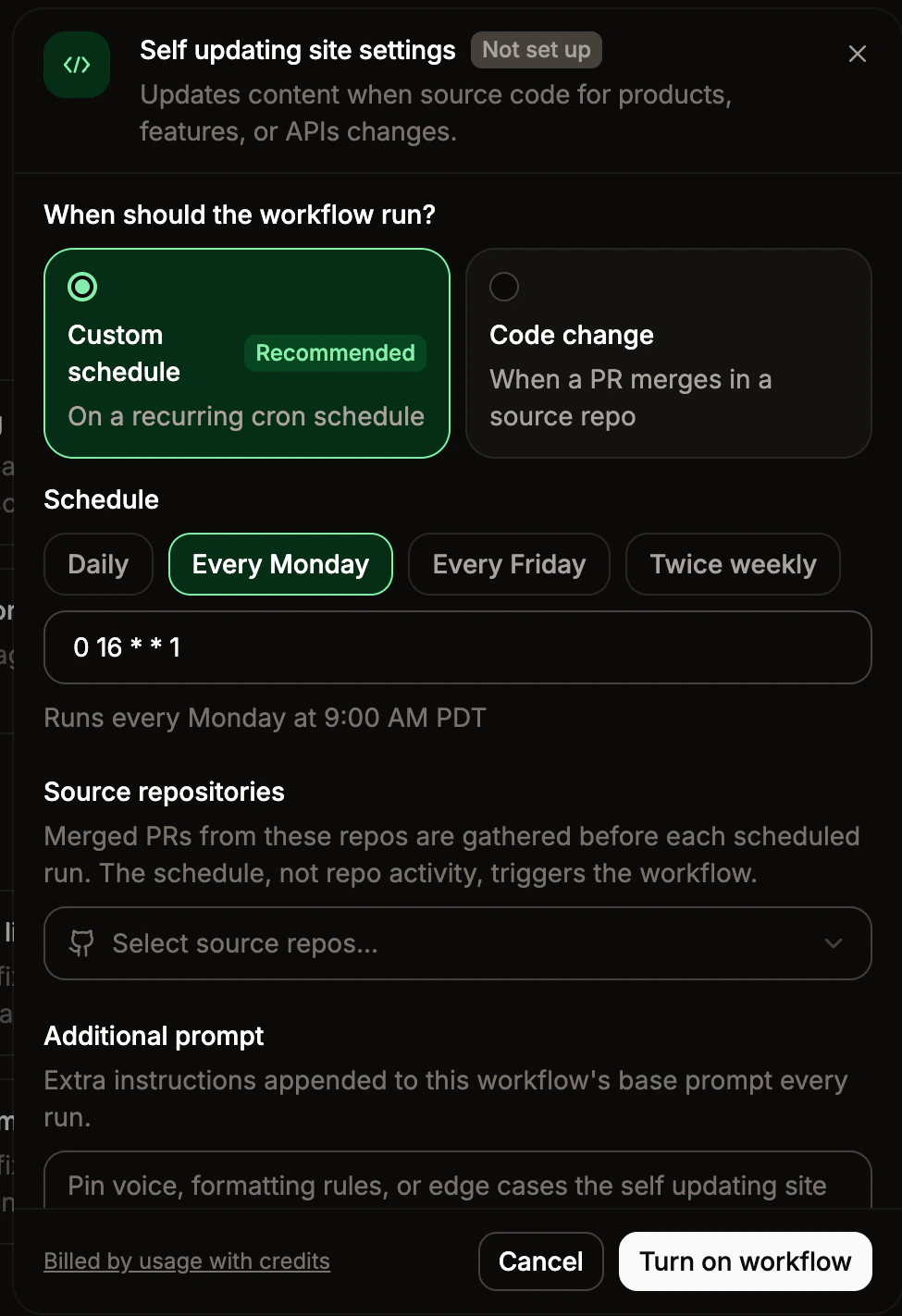
If the workflow can run with default settings, it activates immediately. Otherwise, the settings panel opens so you can fill in any required configurations.
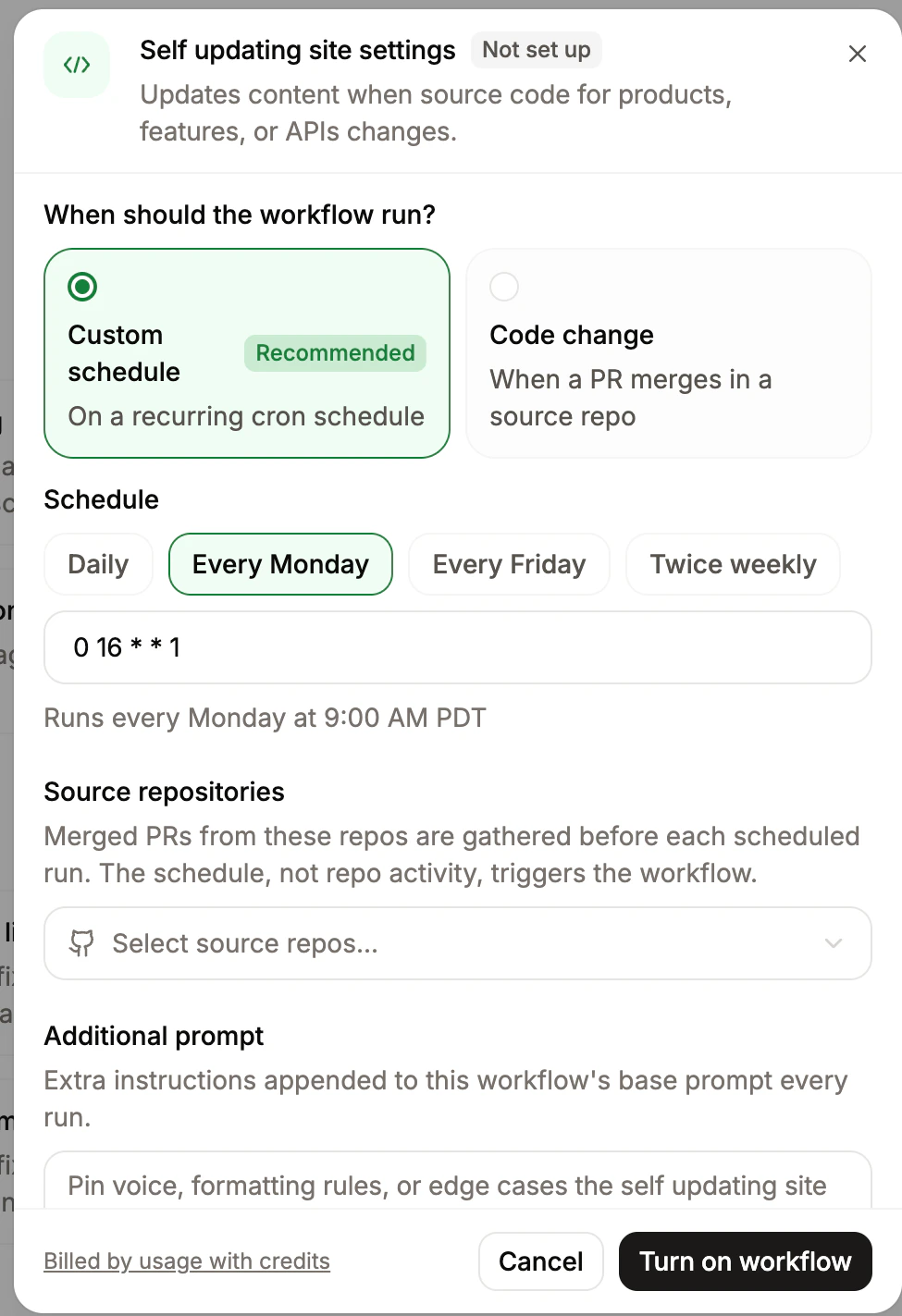
- If the settings panel opens, fill in the required fields.
- Click Turn on workflow.
Configurations
Trigger
Each workflow has a default trigger that controls when it runs. To change the trigger, select a different option in the settings panel.- Content update — Runs when content is pushed to your project repository, including pull request merges and direct pushes.
- Code change — Runs when a pull request merges in a connected source code repository. You must specify at least one source repository.
- Custom schedule — Runs on a recurring schedule you define. Workflows queue within 10 minutes of the scheduled time.
Update mode
Each workflow has a default mode for how it makes updates. Either directly merging changes into your content repository or opening a pull request for review. To require a review before the workflow updates your content, select Require review in the settings panel.For GitHub repositories, automatic updates require the Mintlify GitHub App to have bypass permissions on every ruleset targeting your deploy branch, including organization-level and repository-level rulesets. See Configure automerge for setup instructions.For GitLab repositories, automerge uses the GitLab OAuth connection and requires at least the Maintainer role on each project.
Context repositories
For custom workflows and some predefined workflows, you can add context repositories—additional source code repositories the agent reads when the workflow runs. This is useful when your workflow prompt references code, APIs, or other content that lives outside your project repository. You can add up to 10 context repositories per workflow. For each GitHub repository, install the Mintlify GitHub App. Add repositories on the GitHub App settings page.Instructions
Add optional instructions that append to the workflow’s base prompt on every run. Use these to adjust the style, tone, or other project-specific behaviors without changing the core workflow logic.Target languages
When you enable the translate content workflow, select one or more languages to keep in sync with your source content.- Mintlify reads the languages defined in your
docs.jsonto identify your default language and preselects any already configured target languages. - You must select at least one target language to save the workflow.
- You cannot select the source language as a target.
GitLab setup
To use GitLab repositories in a workflow, connect each project through the GitLab OAuth settings page. Connect every repository the workflow touches—your documentation repository and any trigger or context repositories. You must have at least the Maintainer role on each project.Workflows require a paid GitLab tier. The agent uses short-lived project access tokens for repository access, which GitLab’s Free plan does not support.
Disable a workflow
- Go to the Workflows page in your dashboard.
- Click the toggle beside a workflow to disable it.
View run history
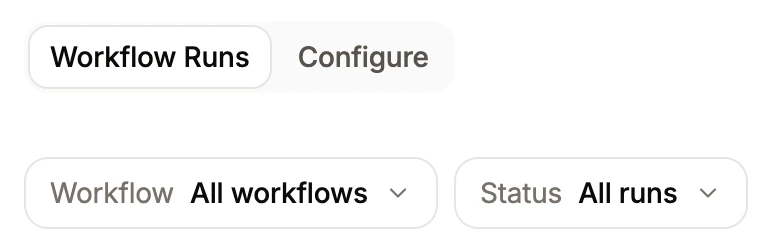
Each workflow keeps a log of past runs, including the status and a summary of changes made.- Go to the Workflow Runs page in your dashboard.
-
Use the dropdown menus to filter by specific workflows or status.